How to Turn On a Music Visualizer While Playing Music on iPhone, iPad, and Mac

Short answer: Evermusic and Flacbox both have a full-screen music visualizer that paints moving, colorful visuals in time with your music. Open it from the Now Playing player (⋯ More > Visualization) or from Settings > Visualization, then pick a preset or Auto and tap Start visualization. On the visualizer screen, tap once to show or hide the controls and use the Previous and Next arrows to change the look. It uses the well-known Milkdrop (projectM) engine with 500 presets, renders with OpenGL, and works on iPhone, iPad, and Mac. The steps are the same in both apps. Full steps are below.
What Is the Visualizer?
The visualizer is a moving light show that reacts to your music in real time. As the song plays, the sound drives the shapes, colors, and motion on screen, so quiet moments look calm and loud moments burst with energy. It is great on a big screen, on a Mac, or just to enjoy the music in a new way. The same visualizer is built into both Evermusic and Flacbox, and it works the same way in each.
Under the hood it uses Milkdrop-style presets through the open-source projectM engine, the same family of visuals many people remember from desktop music players. Each preset is a different animated scene, and the app ships with 500 of them. The visuals are drawn with OpenGL for smooth, GPU-accelerated animation.
How to Turn On the Visualizer
There are two ways to open it, and they are the same in Evermusic and Flacbox.
From the player (fastest):
- Open the Now Playing player screen.
- Tap the ⋯ (More) button.
- Tap Visualization.
From Settings:
- Go to the Settings tab.
- Tap Visualization.
Either way, you land on the preset picker.
The Preset Picker
The preset picker is a simple list where you choose how the visualizer starts:
- Auto sits at the top of the list. Pick it to let the app shuffle through the presets on its own, changing to a new one every 30 seconds with a smooth crossfade. This is the easiest way to enjoy the show without touching anything.
- Any named preset (the list is sorted by name) starts the visualizer on that exact look. The preset you used last is remembered and highlighted, so it is easy to find again.
Once you have made your choice, tap Start visualization and the full-screen show begins. As the app puts it: “Select a preset to start with it, or use Auto mode which shuffles through the presets, switching every 30 seconds with a smooth crossfade.”
The Controls on the Visualizer Screen
The visualizer runs full-screen so nothing gets in the way of the visuals. Tap anywhere once to bring up the controls, and tap again (or just wait a few seconds) to hide them so you get a clean, full-screen picture.
When the controls are showing, you will see:
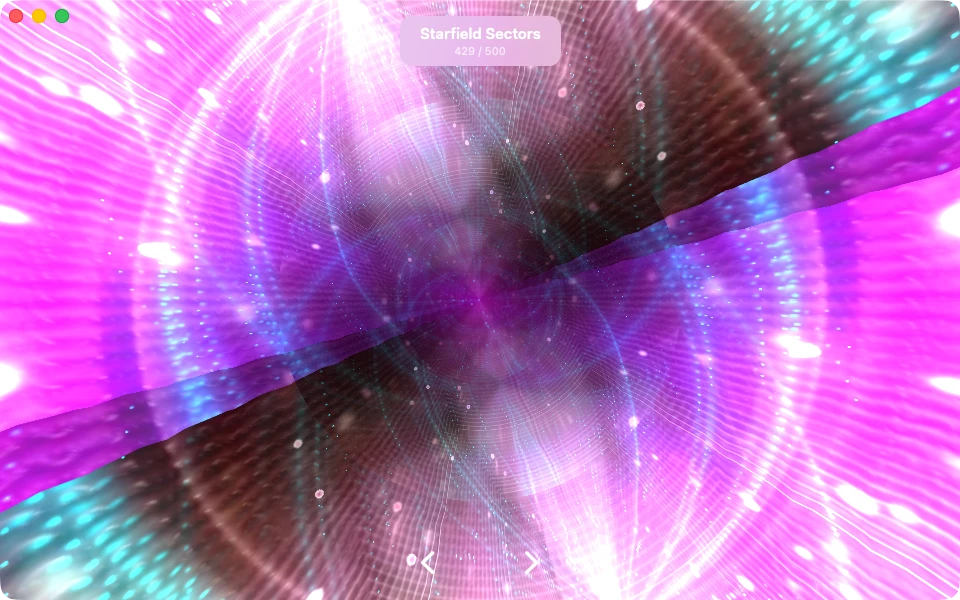
- Preset title and counter (top center). The name of the current preset, with a counter underneath, like 429 / 500, so you always know which one you are looking at and how many there are. In the screenshot above, the current preset is Starfield Sectors.
- Previous and Next arrows (bottom). Tap Next (>) to jump to the next look, or Previous (<) to go back. This lets you flip through the presets by hand until you find one you love.
- Close button (top corner). Tap it to leave the visualizer and return to the app.
The screen also stays awake while the visualizer is on, so it will not dim or lock in the middle of the show.
How to Change the Preset
You have two easy ways to change the look:
- By hand. Tap the screen to show the controls, then use the Previous and Next arrows to move through the presets one at a time. The title and counter at the top update as you go, and the app remembers the last preset you landed on for next time.
- Automatically. Start the visualizer in Auto mode (from the preset picker). The app then shuffles through the presets for you, switching every 30 seconds with a gentle crossfade, so the show keeps changing on its own.
iPhone, iPad, and Mac
The visualizer works in both Evermusic and Flacbox, on iOS and macOS:
- On iPhone and iPad, it fills the screen and is drawn with OpenGL ES, so it stays smooth even on a Retina display.
- On Mac, the app opens the visualizer in its own window and draws it with native desktop OpenGL, so you get the same reactive Milkdrop visuals on the big screen.
Either way, the visuals react to the exact audio you are playing, whether that is a local FLAC file, a track from a cloud drive or media server, or an internet radio stream.
Tips
- Tap once to hide the controls for a clean, full-screen picture, then tap again to bring them back.
- Try Auto mode the first time, then switch to picking presets by hand once you find styles you like.
- The counter (like 429 / 500) helps you remember favorites, so you can flip back to a preset you enjoyed.
- Keep it playing. The visuals follow the music, so the more dynamic the track, the more the scene moves.
- On Mac, resize the visualizer window to fit your display or a second screen.