Settings
The Settings screen is the control center of Evervideo. From here you can upgrade to Premium, configure the video and audio engines (system codecs or FFmpeg), manage Picture-in-Picture, set up subtitles (primary, secondary, libass, external files, fonts), organize the media library, set up the file manager, enable Home Screen widgets, back up your data, and access help and legal information. Sections are grouped under headers: Purchases & Updates, App preferences, Help, Legal & Privacy.
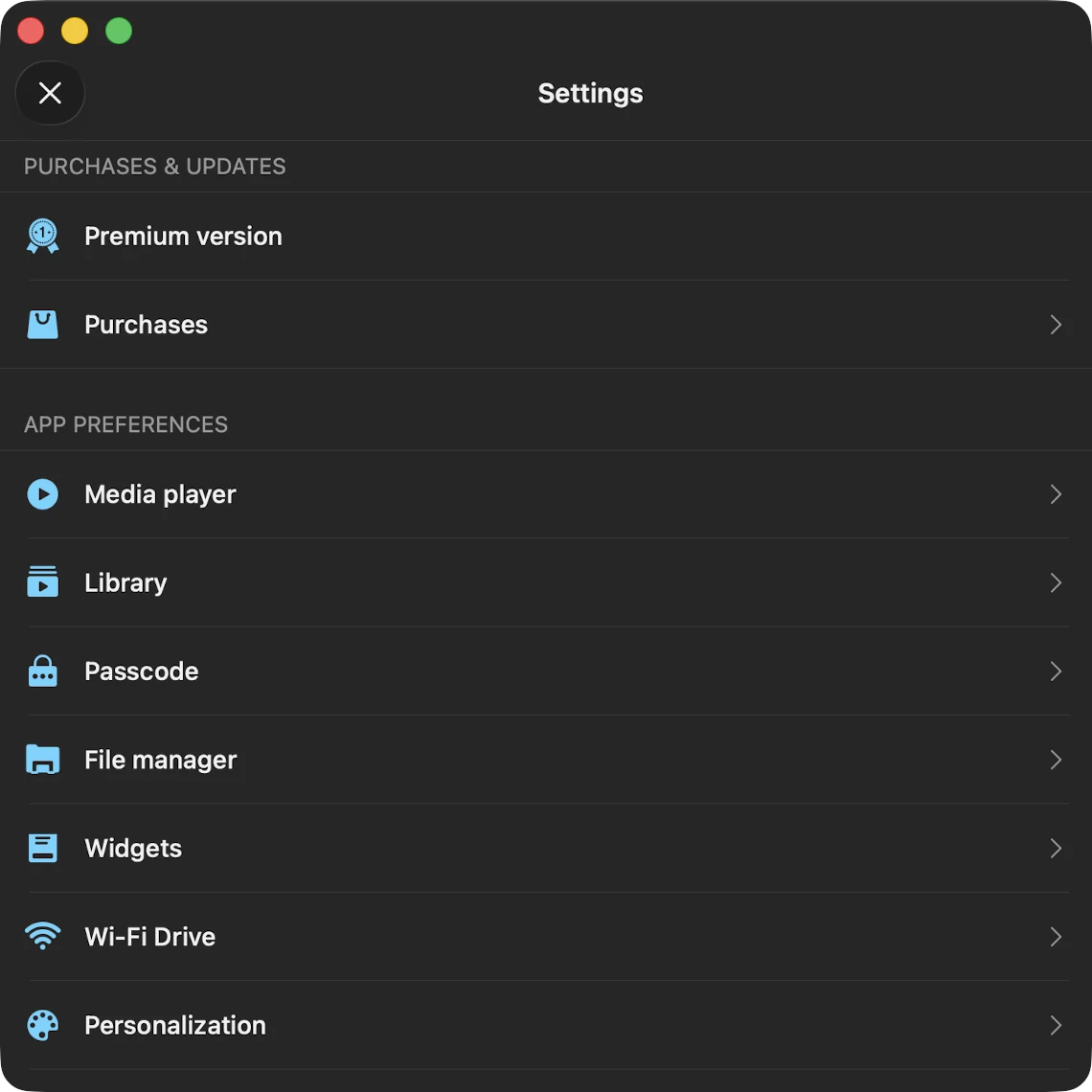
Upgrade to Premium
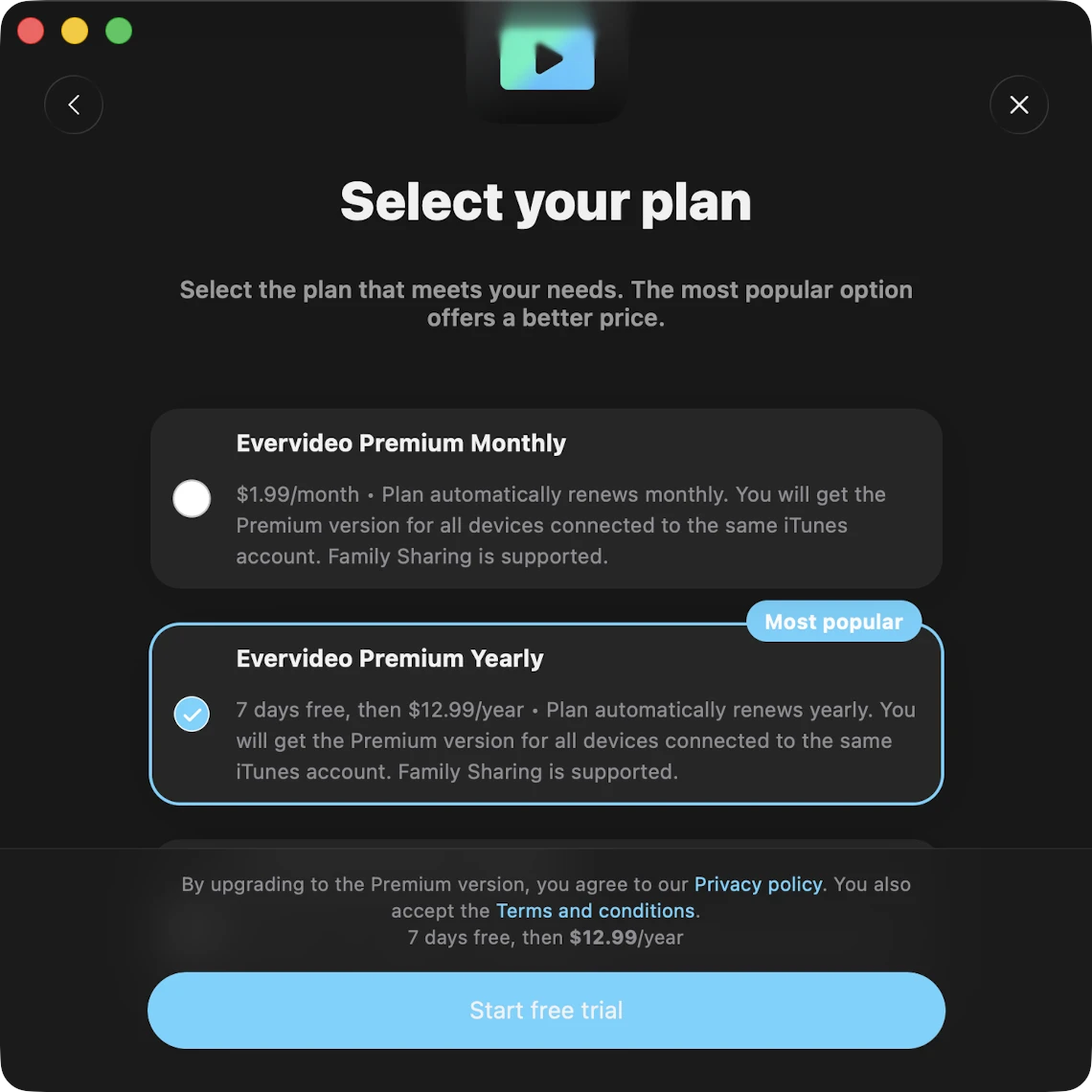
Upgrade the application to the Premium version to remove all limits. The free version of the application offers a one-time lifetime in-app purchase and two subscription options (1 month and 1 year) to remove all restrictions and upgrade to Premium.
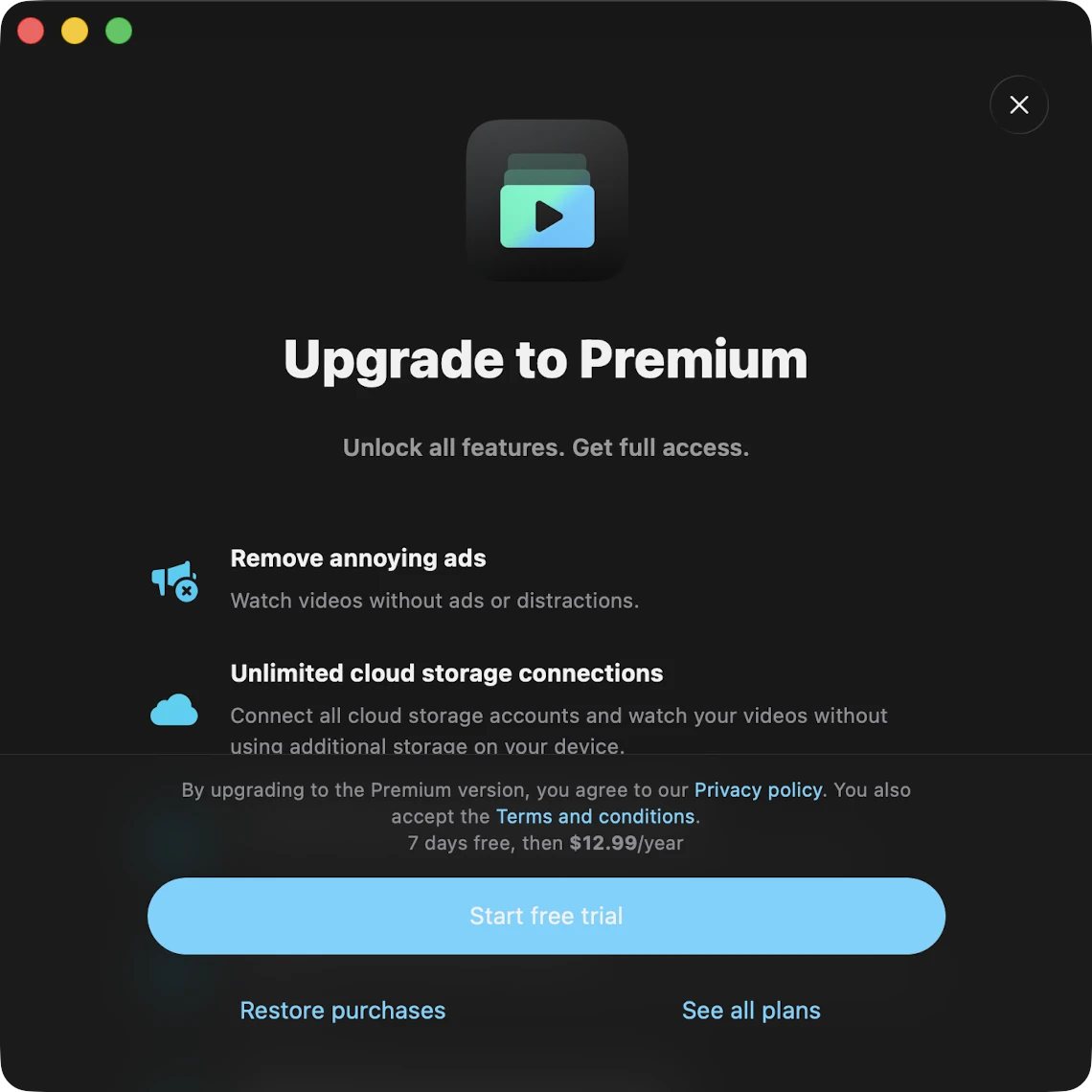
Family Sharing is enabled for all purchases and plans, so you can share the Premium version with up to five members of your family at no extra cost.
Sharing Purchases Between iOS and Mac
Lifetime purchases and subscriptions are shared between iOS and Mac using iCloud to sync this information. If you have Premium on your iOS device, ensure you have the latest version installed and that iCloud is enabled. Start the app on iOS and wait one minute for purchase information to upload to iCloud, then launch the Mac version — Premium should activate automatically.
You can also tap the Restore Purchases button in the app settings. Ensure you have an internet connection and are signed in to the same iCloud and App Store account on both devices.
Restore Purchases on a New Device
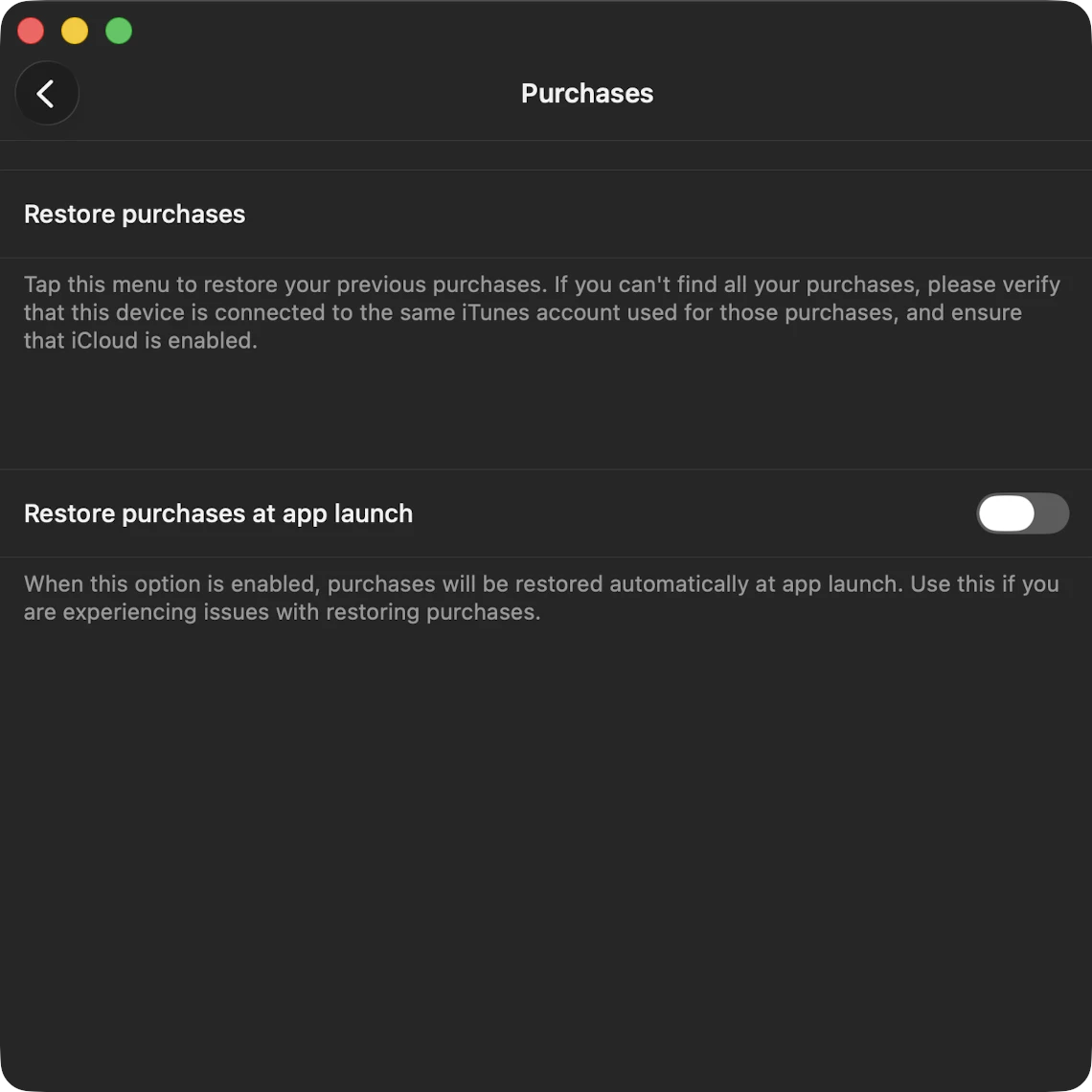
To restore your purchase on a new device, use the Purchases → Restore Purchases menu. You’ll see the list of your purchases. If you don’t see all of them, confirm the device is connected to the same Apple ID that was used to make the purchases, and make sure iCloud is enabled.
Try Premium for Free
You can upgrade to the Premium version for free, for a limited time, using this menu. Just watch an advertisement or tell your friends about the app.
Software Update
Tap Software Update to check whether a newer version of Evervideo is available on the App Store.
What’s New
This menu is available after a new version is released. It shows a summary of the changes and new features in the most recent update.
Player
Everything related to playback lives here — audio, video, subtitles, devices, personalization, cache, and the sleep timer.
General
These settings cover the fundamental aspects of the player.
- Repeat Mode — choose how the player behaves when a video finishes:
- Repeat All — replays every video in your queue.
- Repeat One — repeats only the current video.
- Repeat Stop — pauses when the current video ends.
- Repeat None — plays the queue once through without repeating.
- Shuffle Mode — randomize the order of videos in your queue (On or Off).
- Save Playback Position — saves and restores the playback position for videos in your library.
- Save Player State — preserves the player’s state before you close the app, so you can resume from where you left off.
Video
Configure how Evervideo decodes and renders video.
- Hardware Decode H.264 — turn on / off hardware-accelerated AVC decoding. Use when battery and thermal performance matter; turn off for compatibility with exotic profiles.
- Hardware Decode H.265 (HEVC) — same for HEVC. Modern iPhones, iPads, and Macs decode HEVC efficiently.
- Preferred Pixel Format — pick the pixel format the player presents to the renderer (defaults are tuned for the device).
- Preferred FPS — set a target playback FPS. Useful for matching a specific monitor refresh rate.
- Video Scaling Mode — Fit / Fill / Stretch / Original. Determines how the picture fills the display area.
- Video Display Mode (iOS / iPadOS) — how the video is presented in the player view.
- Video Rotation — manually rotate the picture 0° / 90° / 180° / 270° (helpful for videos recorded with the wrong orientation).
- Video Equalizer — adjust brightness, contrast, saturation, and hue with a real-time preview. Custom presets can be exported and imported.
- VR View-Port (iOS / iPadOS) — for 360° spherical videos. Drag to look around, pinch to zoom.
- Picture-in-Picture (PiP) (iOS / iPadOS) — enable PiP support; the app will switch to a floating player window when you background the app or tap the PiP button.
Audio
Configure audio playback and output.
- Audio Track — pick the audio stream when a video has multiple (commentary, dub, etc.).
- Audio Equalizer — 10-band EQ with presets and a preamplifier. Custom presets can be exported / imported.
- Audio Output Sample Rate — 44.1 kHz, 48 kHz, 64 kHz, 88.2 kHz, 96 kHz. Useful with external DACs.
- Audio Output Number of Channels — Mono, Stereo, 5.1, ITU BS.775-1, SDDS, and more.
- Audio Output Preferred IO Buffer Duration — typical value for low-latency hi-res playback is around 5 ms (0.005 s). Tune for your hardware.
- Audio Output Mode (iOS only) — mixed mode lets Evervideo’s audio blend with other apps.
Subtitles
Evervideo includes comprehensive subtitle support.
- Subtitle Track — pick from embedded subtitle tracks in the file.
- External Subtitle File — load an external
.srt,.vtt,.ass, or.ssafile from your device or any connected cloud service. - Font — pick a font for the primary subtitle track.
Devices (iOS/iPadOS Only)
Pick an AirPlay or Google Chromecast device for video output.
Personalization
- Player Layout Style — Minimal (default for Evervideo), Bottom, Antique, Classical, and more.
- Main Screen Actions — pick which buttons appear on the main player screen.
- Lock-Screen Controls — Skip Time, Add Bookmark, Add to Favorites.
- Skip Time Intervals — pick the time interval for skip buttons (5 s, 10 s, 15 s, 30 s, etc.).
- Album Covers Scrolling Style — preferred scrolling style for cover art.
- Additional Elements — Audio Format Info, Volume Slider.
File Loading
Configure how video data streams from the network.
- Network Type — Wi-Fi only, or Wi-Fi + Cellular.
- Preloading Time — buffer length for smoother playback on slow networks.
- Use Direct URL — when supported, use a direct URL for faster loading.
Playback Cache
Videos in the player queue are automatically downloaded to ensure smooth playback. You can disable this option or configure the cache size here.
Sleep Timer
Activate a timer to automatically stop playback after a specified period. Tap the configuration icon for precise mode with minute-by-minute granularity.
Media Library
Manage automatic sync, metadata, album covers, playlists, recents, and favorites.
Metadata Reading
When you add videos to the library, the metadata reader scans them in the background and organizes them by Album and Genre. You can adjust scan speed, disable the reader, or trigger a full re-scan with Reload Metadata. Normalize Metadata Encoding automatically fixes broken character encodings (common with files from Windows PCs).
Online Synchronization
Automatically add videos from connected cloud services and media servers to your library. Pick which folders to scan, configure how often the app should sync, and start / stop synchronization manually. Online sync runs only while the app is active — for large libraries, use the desktop version and then transfer the synchronized library with Backup & Restore.
Offline Synchronization
When you mark a cloud folder as available offline, it appears in Files → Offline Folders and is downloaded automatically. New files added online are also downloaded. Configure the time interval and trigger manual syncs from this screen.
Personalization
- Media Library Screen Style — Plain Menu, Grouped Menu, Tabbed Menu.
- Toggle whether to show large album covers in detail screens.
Album Covers
- Network Type — Wi-Fi or Wi-Fi + Cellular.
- Load Album Covers for Online Files — pull embedded artwork from cloud files (uses extra data).
- Search in the Folder — use JPEG / PNG images in the same folder when a video has no embedded cover.
- Cover Quality — adjust the resolution at which covers are cached.
- Show in Folder / Delete All — manage the artwork cache.
Playlists
Enable adding the same video to a playlist twice (off by default).
Recents
Manage the recently played videos list — change the size, delete, or export as M3U / CSV / TXT.
Favorites
- Simultaneous Editing — mirror favorites between the media library and the files section.
- Delete List — clear the favorites list.
- Export Songs List — export favorites as M3U / CSV / TXT.
Delete Media Library
Erase the media library database. Your video and audio files on storage are left untouched.
Passcode
Protect Evervideo with a 4-digit numeric passcode. When enabled, you’ll be prompted to enter the passcode every time the app launches. Combine it with iOS Face ID / Touch ID on the device for extra protection.
File Manager
Controls how files are transferred, stored, and previewed.
- File Transfers — network preference (Wi-Fi only or Wi-Fi + Cellular).
- Maximum Number of Parallel Tasks — set the number of parallel download threads.
- File Transfer Tasks — see currently active uploads and downloads.
- Background Transfers — allow downloads while the app is in the background.
- Save Downloaded Files To — default downloads directory.
- Synchronized Offline Folders — manage offline-mode folders.
- Time Interval — how often offline folders are checked for changes.
- Show Full Filenames — show extensions in the file manager.
- Edit Online Files — disable to switch to read-only mode for connected cloud services.
- Copy Files When Opening — how to handle imported files from other apps.
- Thumbnails for Files — manage generated file thumbnails.
- Delete Temporary Files — clear the application’s cache folder.
Wi-Fi Drive
Activate Wi-Fi Drive to transfer files from a computer to your device using a desktop web browser, Finder, or File Explorer. Detailed instructions are available here.
Widgets
Enable widgets so the app updates widget data during playback. Widget updates require additional energy, so the toggle is off by default — enable it only if you actually use widgets on your Home Screen or Lock Screen.
You can add Evervideo widgets by long-pressing your Home Screen or Lock Screen, tapping +, searching Evervideo, and picking a widget size. Widgets show the now-playing video and tap through directly to the full-screen player. Widgets also work on macOS in the Notification Center.
Personalization
Customize the user interface to suit your preferences.
- Application Icon — alternate Home Screen icon (Premium).
- Color Scheme — Dark, Light, or Default (follows your system appearance).
- Background Style — Blurred Album Cover or solid color.
- Appearance of Items in the List — auto-adjust row height; show smaller thumbnails.
- Content Loading Limit — turn pagination on / off.
- Files Screen Style — Plain Menu or Grouped Menu.
- Media Library Screen Style — Plain / Grouped / Tabbed Menu.
- Player Screen Style — Minimal / Bottom / Antique / Classical.
- Context Menu Style — system menu or bottom-sheet style.
Window
Available on Mac and Catalyst. Configure window-related preferences such as default size and behavior on launch.
Screen
Choose whether the screen should stay active while you are using the application.
Accessibility
Activate Text Mode to hide images in the user interface. Text Mode is enabled automatically when VoiceOver is active.
Language
Change the application language and override the system default. The change applies after you fully quit and reopen Evervideo. Over 120 languages are supported.
Backup & Restore
Back up all of your application data or migrate it to another device. Choose what to include:
- Database — your media library entries, playlists, ratings, favorites, watch history. Offline files are not included to keep the file size manageable.
- Album Covers — your cached artwork.
- Settings — your application settings.
Tap Backup Application Data to start the backup. To restore on a new device, move the backup file via iCloud Drive, AirDrop, or any connected cloud service and open it on the new device.
Help
Access the application guide for assistance and guidance on using the app effectively.
Frequently Asked Questions
Find answers to common questions in the FAQ section.
Send Feedback
Send your feedback to our support team directly from the app, with diagnostic information attached automatically.
Share This App
Share Evervideo with your friends to spread the word.
Discover More Apps
Explore other apps from Everappz.
Terms and Conditions
Read the terms and conditions before using the application.
Privacy Policy
Read the privacy policy to understand our data-handling practices.
Analytics and Data Collection
Check which services are enabled for analytics and data collection and deactivate any you do not want.
Legal Notices
Information about every library used in the application along with the app version number and build information.